Building an HLS Adaptive Streaming Pipeline: A Complete Guide
A step-by-step guide to building an HLS adaptive streaming pipeline — from encoding multi-bitrate variants to CDN delivery.
Availability note (September 2026). Per-title encoding is available on Transcodely, since 15 September 2026. Set
content_aware.modetoper_titleon an output and the encode is tuned to that source against a VMAF target, at a 1.5× multiplier charged only when a search actually chose the CRF. It needs an encoded window of at least 120 seconds. Auto-ABR ladder generation is not available: a job that setscontent_aware.mode = auto_abris rejected at job creation with error codeparameter_unsupported, because it would change the number of renditions after the job was already quoted per rendition. Where this post mentions auto-ABR, read the technique and the planned integration, not something you can switch on today. The content-aware API reference tracks the current state and the pricing page lists what is purchasable now.
If you are delivering video to web browsers and mobile devices, you are almost certainly using HLS. HTTP Live Streaming has become the dominant adaptive streaming protocol, handling everything from live broadcasts to on-demand catalogs at every scale. But building a reliable HLS pipeline involves more than just running an encoder. You need to understand manifests, segment formats, ABR ladders, audio tracks, subtitles, and CDN delivery.
This guide walks through the entire pipeline — from raw source video to a fully packaged HLS stream served via CDN — with practical examples at each step.
What is HLS?
HTTP Live Streaming (HLS) is an adaptive bitrate streaming protocol created by Apple in 2009. It works by breaking a video into short segments (typically 2-10 seconds each) and serving them over standard HTTP. A manifest file lists the available quality variants, and the player dynamically switches between them based on the viewer’s network conditions.
The elegance of HLS lies in its simplicity. Video segments are just files served by a standard web server or CDN — no specialized streaming server required. The player downloads the manifest, picks a quality level, and begins fetching segments. If the network slows down, the player drops to a lower quality variant. If bandwidth improves, it steps back up. The viewer sees a continuous stream with quality that adapts in real time.
HLS has achieved near-universal support:
- iOS and macOS: Native support via Safari and AVFoundation (HLS was created by Apple, after all)
- Android: Supported via ExoPlayer and most third-party players
- Web browsers: Supported via hls.js (the standard JavaScript HLS library) in Chrome, Firefox, Edge, and others
- Smart TVs and set-top boxes: Virtually all modern devices support HLS
- Gaming consoles: Xbox, PlayStation, and Nintendo Switch all support HLS playback
This ubiquity is why HLS dominates. When your content needs to reach every device your audience owns, HLS gets you there.
HLS vs DASH vs CMAF
HLS is not the only adaptive streaming protocol. DASH (Dynamic Adaptive Streaming over HTTP) is the other major contender, and CMAF (Common Media Application Format) bridges the two. Here is how they compare:
| Feature | HLS | DASH | CMAF |
|---|---|---|---|
| Created by | Apple (2009) | MPEG (2012) | MPEG/Apple joint (2018) |
| Manifest format | .m3u8 (M3U playlist) |
.mpd (XML-based) |
Uses HLS or DASH manifests |
| Segment format | .ts (legacy) or .fmp4 |
.fmp4 (always) |
.fmp4 (shared segments) |
| DRM support | FairPlay (native), Widevine/PlayReady (via fMP4) | Widevine, PlayReady | All major DRM systems |
| Apple device support | Native | Requires JavaScript polyfill | Native (via HLS manifest) |
| Browser support | Safari native; others via hls.js | Most browsers via dash.js | Via either HLS or DASH players |
| Low latency | LL-HLS (partial segments) | LL-DASH (chunked transfer) | Supported via either protocol |
For most new projects, the recommendation is clear: use CMAF. CMAF produces a single set of fMP4 segments that can be referenced by both HLS and DASH manifests. You encode once, package once, and serve to every device. No duplicate segments, no duplicate storage costs, no diverging pipelines.
CMAF achieves this by standardizing on fragmented MP4 (fMP4) as the segment container format. Both HLS (since HLS version 7, supported by Apple since iOS 10) and DASH natively support fMP4 segments. A CMAF pipeline generates:
- One set of fMP4 video segments per quality variant
- One HLS master playlist (
.m3u8) referencing those segments - One DASH manifest (
.mpd) referencing the same segments
Same bytes on disk, two manifest formats, universal device coverage.
Anatomy of an HLS stream
An HLS stream consists of three layers: the master playlist, media playlists, and segments.
Master playlist
The master playlist is the entry point. It lists all available quality variants with their bandwidth and resolution, allowing the player to choose the appropriate one:
#EXTM3U
#EXT-X-VERSION:7
#EXT-X-INDEPENDENT-SEGMENTS

#EXT-X-STREAM-INF:BANDWIDTH=800000,RESOLUTION=640x360,CODECS="avc1.4d401e",FRAME-RATE=30
360p/playlist.m3u8

#EXT-X-STREAM-INF:BANDWIDTH=1400000,RESOLUTION=854x480,CODECS="avc1.4d401f",FRAME-RATE=30
480p/playlist.m3u8

#EXT-X-STREAM-INF:BANDWIDTH=2800000,RESOLUTION=1280x720,CODECS="avc1.4d4020",FRAME-RATE=30
720p/playlist.m3u8

#EXT-X-STREAM-INF:BANDWIDTH=5000000,RESOLUTION=1920x1080,CODECS="avc1.640028",FRAME-RATE=30
1080p/playlist.m3u8

#EXT-X-MEDIA:TYPE=AUDIO,GROUP-ID="audio",NAME="English",DEFAULT=YES,LANGUAGE="en",URI="audio/en/playlist.m3u8"
#EXT-X-MEDIA:TYPE=AUDIO,GROUP-ID="audio",NAME="Spanish",DEFAULT=NO,LANGUAGE="es",URI="audio/es/playlist.m3u8"

#EXT-X-MEDIA:TYPE=SUBTITLES,GROUP-ID="subs",NAME="English",DEFAULT=YES,LANGUAGE="en",URI="subs/en/playlist.m3u8"
The BANDWIDTH value tells the player the peak bitrate for that variant, enabling network-based selection. The CODECS string identifies the exact codec profile and level, so the player can skip variants that the device hardware cannot decode.
Media playlists
Each variant has its own media playlist that lists the individual segments:
#EXTM3U
#EXT-X-VERSION:7
#EXT-X-TARGETDURATION:6
#EXT-X-MEDIA-SEQUENCE:0
#EXT-X-PLAYLIST-TYPE:VOD
#EXT-X-MAP:URI="init.mp4"

#EXTINF:6.006,
segment_000.m4s
#EXTINF:6.006,
segment_001.m4s
#EXTINF:6.006,
segment_002.m4s
#EXTINF:4.171,
segment_003.m4s

#EXT-X-ENDLIST
The #EXT-X-MAP tag points to the initialization segment (init.mp4), which contains codec configuration and other metadata needed to begin decoding. Each #EXTINF line specifies the duration of the following segment.
Segments
Segments are the actual video data — short chunks of encoded video, typically 2-10 seconds each. The segment duration is a critical design decision:
| Segment duration | Startup latency | Seek precision | Segment count (1hr video) | CDN cache efficiency |
|---|---|---|---|---|
| 2 seconds | Very low | High | 1,800 | Lower (more small requests) |
| 4 seconds | Low | Good | 900 | Good |
| 6 seconds | Moderate | Moderate | 600 | High |
| 10 seconds | Higher | Lower | 360 | Very high |
The industry standard has converged on 6 seconds as the default segment duration. It balances startup latency, seek precision, and CDN cache efficiency. For low-latency applications, 2-4 second segments are common. For long-form VOD where startup latency is less critical, 8-10 second segments reduce the total number of HTTP requests.
Building the ABR ladder
The ABR (Adaptive Bitrate) ladder defines which quality variants to encode. A well-designed ladder ensures smooth quality transitions across a wide range of network conditions.
Common resolution tiers
| Resolution | Typical bitrate range (H.264) | Typical bitrate range (HEVC) | Target audience |
|---|---|---|---|
| 360p | 0.5 - 1.0 Mbps | 0.3 - 0.6 Mbps | Very slow connections, feature phones |
| 480p | 1.0 - 1.8 Mbps | 0.6 - 1.2 Mbps | Mobile on cellular, emerging markets |
| 720p | 1.8 - 3.5 Mbps | 1.2 - 2.5 Mbps | Standard definition on most screens |
| 1080p | 3.5 - 8.0 Mbps | 2.0 - 5.0 Mbps | Full HD on laptops, tablets, TVs |
| 1440p | 6.0 - 12.0 Mbps | 4.0 - 8.0 Mbps | QHD displays, large monitors |
| 2160p (4K) | 12.0 - 20.0 Mbps | 8.0 - 15.0 Mbps | 4K TVs, premium tier |
These ranges assume standard complexity content (dramas, documentaries). High-motion content like sports will fall at the upper end, while simple content like interviews will fall at the lower end. For content-optimized bitrates, see Per-Title Encoding Explained.
GOP alignment
Group of Pictures (GOP) alignment is essential for seamless quality switching. The GOP defines the interval between keyframes (I-frames), and every segment must start with a keyframe.
If your segment duration is 6 seconds, your keyframe interval must be 6 seconds (or a factor of 6, like 2 or 3 seconds). When keyframe intervals align across all variants, the player can switch between quality levels at any segment boundary without visual artifacts.
Misaligned GOPs cause problems: the player might need to download overlapping data from two variants during a quality switch, or worse, display a visible glitch at the transition point.
The rule is simple: set the keyframe interval equal to the segment duration across all variants. For a 6-second segment duration at 30fps, that means a keyframe every 180 frames.
Segment format: fMP4 (CMAF) vs TS
HLS originally used MPEG-2 Transport Stream (.ts) as its segment container format. Since HLS version 7 (2017), fragmented MP4 (.fmp4, also called .m4s) has been the recommended format.
fMP4 (CMAF) advantages
- Lower overhead: fMP4 container overhead is roughly 1-2% of segment size, compared to 5-8% for TS. Over millions of segments, this adds up.
- DRM compatible: fMP4 supports Common Encryption (CENC), enabling Widevine, PlayReady, and FairPlay DRM with a single set of encrypted segments. TS only supports AES-128 sample encryption, which is less flexible.
- Unified HLS + DASH: fMP4 segments can be referenced by both HLS and DASH manifests (this is CMAF). TS segments only work with HLS.
- Modern codec support: Newer codecs like HEVC and AV1 are better supported in the fMP4 container. HEVC in TS has compatibility issues on some platforms.
- Byte range addressing: fMP4 supports byte-range requests, allowing multiple segments to be stored in a single file for reduced request overhead.
When to use TS
TS segments are only recommended when you need to support pre-2017 Apple devices (iOS 9 and earlier, macOS Sierra and earlier) or legacy set-top boxes that have not been updated to support fMP4. For any modern deployment, fMP4 is the correct choice.
Recommendation
Use fMP4 with CMAF packaging. You get smaller segments, DRM compatibility, HLS + DASH from a single encode, and compatibility with every device manufactured in the last seven years.
Adding multi-language audio tracks
A complete streaming pipeline supports multiple audio tracks for international audiences and accessibility requirements.
HLS handles multiple audio tracks as separate media playlists referenced from the master playlist. Each audio track is a distinct stream of audio segments, independent of the video segments. This separation is critical — it means you encode the video once and pair it with any number of audio tracks without re-encoding the video.
Key considerations for multi-language audio:
Language codes. Use BCP 47 language tags (en, es, fr, ja, pt-BR) in your manifest. Players use these tags to match the viewer’s device language settings for automatic track selection.
Default track. Mark exactly one audio track as DEFAULT=YES in the manifest. This is the track that plays when the viewer has not made an explicit selection and the player cannot match the device language.
Audio-only tracks for accessibility. Consider including an audio description track for visually impaired viewers. Mark it with CHARACTERISTICS="public.accessibility.describes-video" in the HLS manifest.
Codec considerations. AAC-LC is the universal audio codec for HLS — supported on every device. For higher quality, AAC-HE v2 provides good quality at lower bitrates (useful for bandwidth-constrained scenarios). Dolby Digital (AC-3) and Dolby Digital Plus (E-AC-3) are supported on Apple devices and most smart TVs.
Most streaming platforms support between 2 and 8 audio tracks per title. Beyond 8 tracks, the storage and CDN costs become significant, and the player UI becomes difficult to navigate. Transcodely supports up to 8 audio tracks per job at no additional cost.
Adding subtitles
Subtitles in HLS are served as separate text-based files referenced from the master playlist, similar to audio tracks.
Subtitle formats
| Format | Extension | Use case | HLS support |
|---|---|---|---|
| WebVTT | .vtt |
HLS sidecar subtitles (industry standard) | Native |
| SRT | .srt |
Source format, widely used for authoring | Convert to WebVTT for HLS |
| TTML | .ttml |
DASH, broadcast workflows, regulatory compliance | Via DASH manifest |
| ASS/SSA | .ass |
Styled subtitles (anime, karaoke) | Burn-in only |
For HLS delivery, WebVTT is the standard sidecar format. Subtitles are served as separate files that the player downloads alongside video segments. This approach keeps subtitle text searchable, accessible, and independently cacheable.
Burn-in subtitles — rendered directly into the video frames — are used for social media clips and platforms where sidecar subtitles are not supported. Burn-in subtitles cannot be toggled off by the viewer, so they are generally reserved for short-form content.
Subtitle track structure
Each subtitle language gets its own WebVTT playlist in the HLS manifest:
#EXT-X-MEDIA:TYPE=SUBTITLES,GROUP-ID="subs",NAME="English",DEFAULT=YES,FORCED=NO,LANGUAGE="en",URI="subs/en/playlist.m3u8"
#EXT-X-MEDIA:TYPE=SUBTITLES,GROUP-ID="subs",NAME="Spanish",DEFAULT=NO,FORCED=NO,LANGUAGE="es",URI="subs/es/playlist.m3u8"
#EXT-X-MEDIA:TYPE=SUBTITLES,GROUP-ID="subs",NAME="French",DEFAULT=NO,FORCED=NO,LANGUAGE="fr",URI="subs/fr/playlist.m3u8"
The FORCED=YES flag is used for forced narrative subtitles — translations of on-screen text, signs, or foreign language dialogue that should always appear regardless of the viewer’s subtitle preference.
Building the pipeline with Transcodely
Here is a complete example of building an HLS adaptive streaming pipeline using the Transcodely API.
Step 1: Create a preset
Presets define reusable encoding configurations. Create one for your standard HLS output:
{
  "name": "Standard HLS 1080p Multi-Codec",
  "description": "Adaptive HLS with H.264 + HEVC, multi-language audio, subtitles",
  "output": {
    "format": "adaptive",
    "codecs": ["h264", "hevc"],
    "max_resolution": "1080p",
    "segment_format": "fmp4",
    "segment_duration_seconds": 6,
    "gop_size_seconds": 6
  },
  "quality": "standard",
  "per_title_encoding": true,
  "auto_abr": true,
  "thumbnails": {
    "enabled": true,
    "interval_seconds": 10,
    "width": 320
  }
}
This preset produces CMAF-packaged output with both HLS and DASH manifests, H.264 and HEVC codec variants, and thumbnail sprites — all from a single configuration. Of the two content-aware lines, per_title_encoding sketches the per-title CRF search, which is available today as content_aware.mode = per_title; auto_abr sketches automatic ladder generation, which is refused at job creation (see the availability note above).
Step 2: Submit an encoding job
{
  "source_url": "s3://my-bucket/source/nature-doc-ep-3.mp4",
  "preset_id": "pst_k7m2x9p4q1",
  "audio_tracks": [
    { "language": "en", "label": "English", "default": true },
    { "language": "es", "label": "Spanish", "default": false },
    { "language": "fr", "label": "French", "default": false }
  ],
  "subtitle_tracks": [
    { "language": "en", "format": "webvtt", "source_url": "s3://my-bucket/source/subs/nature-doc-ep-3.en.srt" },
    { "language": "es", "format": "webvtt", "source_url": "s3://my-bucket/source/subs/nature-doc-ep-3.es.srt" }
  ],
  "destination_url": "s3://my-bucket/output/nature-doc-ep-3/",
  "webhook_url": "https://api.myplatform.com/webhooks/transcode"
}
Transcodely will:
- Download the source from S3
- Encode all H.264 and HEVC variants at the bitrates your ladder defines — the per-title CRF search tunes that ladder to the source; automatic ladder selection is the content-aware addition still planned for this step
- Extract and encode multi-language audio tracks
- Convert SRT subtitles to WebVTT for HLS compatibility
- Generate thumbnail sprites at 10-second intervals
- Package everything into CMAF format with HLS + DASH manifests
- Upload the output to the destination S3 path
- Send a webhook notification on completion
Step 3: Handle the webhook
When encoding completes, Transcodely sends a POST request to your webhook URL:
{
  "event": "job.completed",
  "job_id": "job_r3t5y7u9i1",
  "status": "completed",
  "output": {
    "master_playlist_url": "s3://my-bucket/output/nature-doc-ep-3/master.m3u8",
    "dash_manifest_url": "s3://my-bucket/output/nature-doc-ep-3/manifest.mpd",
    "thumbnail_sprite_url": "s3://my-bucket/output/nature-doc-ep-3/thumbnails/sprite.jpg",
    "duration_seconds": 2847,
    "variants": [
      { "resolution": "480p", "codec": "h264", "bitrate_kbps": 950, "vmaf": 93.2 },
      { "resolution": "720p", "codec": "h264", "bitrate_kbps": 2100, "vmaf": 93.5 },
      { "resolution": "1080p", "codec": "h264", "bitrate_kbps": 4200, "vmaf": 93.1 },
      { "resolution": "480p", "codec": "hevc", "bitrate_kbps": 620, "vmaf": 93.3 },
      { "resolution": "720p", "codec": "hevc", "bitrate_kbps": 1400, "vmaf": 93.4 },
      { "resolution": "1080p", "codec": "hevc", "bitrate_kbps": 2800, "vmaf": 93.2 }
    ]
  }
}Step 4: Serve via CDN
Point your CDN (CloudFront, Cloudflare, Fastly, etc.) at the S3 bucket and serve the master playlist URL to your video player. The player handles the rest — parsing the manifest, selecting the appropriate variant, and fetching segments.
CDN configuration tips
The CDN is the final piece of the pipeline. Proper configuration ensures fast startup, smooth playback, and efficient cache utilization.
Cache-Control headers
Manifests and segments have different caching requirements:
| File type | Cache-Control | Reason |
|---|---|---|
Master playlist (.m3u8) |
max-age=86400 (24h) or longer |
Rarely changes for VOD. Can be long-lived. |
Media playlists (.m3u8) |
max-age=86400 (24h) or longer |
Segment list is static for VOD. |
Init segments (init.mp4) |
max-age=31536000 (1 year) |
Never changes. Cache aggressively. |
Video segments (.m4s) |
max-age=31536000 (1 year) |
Immutable. Cache aggressively. |
| Thumbnail sprites | max-age=31536000 (1 year) |
Immutable. Cache aggressively. |
For live streaming, manifests must have short max-age values (1-2 seconds) because the segment list updates continuously. For VOD — which is the focus of this guide — manifests can be cached for days or longer since the content does not change.
CORS headers
If your video player runs on a different domain than your CDN (which is almost always the case), you need proper CORS headers on all HLS files:
Access-Control-Allow-Origin: https://yourplatform.com
Access-Control-Allow-Methods: GET, HEAD
Access-Control-Allow-Headers: Range
Access-Control-Expose-Headers: Content-Length, Content-Range
Access-Control-Max-Age: 86400
The Range header is important — video players use HTTP range requests for byte-range addressing within segments and for resuming interrupted downloads. Without exposing Range in CORS, playback will fail in some browsers.
For development or multi-domain setups, you can use Access-Control-Allow-Origin: *, but in production, restrict it to your specific player domains.
Origin shield
Most CDNs offer an origin shield (or mid-tier cache) that sits between edge nodes and your S3 origin. Enable it. Without an origin shield, each edge node independently requests segments from S3. With an origin shield, a single cache layer absorbs the vast majority of origin requests, reducing S3 request costs and improving cache hit ratios.
For a video platform serving 1 million hours per month, an origin shield can reduce S3 GET request costs by 80-90% while improving first-byte latency for cache misses.
Recommended CDN architecture
Viewer -> Edge node (nearest POP)
              |
              v (cache miss)
         Origin shield (single region)
              |
              v (cache miss)
         S3 / GCS / Azure Storage
This three-tier architecture — edge, shield, origin — is the standard for video delivery. It maximizes cache hit ratios, minimizes origin load, and provides consistent performance globally.
Multi-codec streaming
Modern HLS supports serving multiple codecs within a single master playlist. The player selects the best codec supported by the viewer’s device, falling back to H.264 for universal compatibility.
The typical multi-codec strategy:
- H.264 as the universal fallback — every device supports it
- HEVC for Apple devices and newer Android — 30-40% smaller files at the same quality
- AV1 for newer browsers and devices — 40-50% smaller files, royalty-free
In the master playlist, each variant includes a CODECS string that the player uses for capability detection:
#EXT-X-STREAM-INF:BANDWIDTH=5000000,RESOLUTION=1920x1080,CODECS="avc1.640028",FRAME-RATE=30
h264/1080p/playlist.m3u8

#EXT-X-STREAM-INF:BANDWIDTH=3200000,RESOLUTION=1920x1080,CODECS="hvc1.1.6.L120.90",FRAME-RATE=30
hevc/1080p/playlist.m3u8

#EXT-X-STREAM-INF:BANDWIDTH=2500000,RESOLUTION=1920x1080,CODECS="av01.0.08M.08",FRAME-RATE=30
av1/1080p/playlist.m3u8
All three variants deliver the same visual quality (e.g., VMAF 93) at the same resolution, but at different bitrates. A device that supports AV1 gets 1080p at 2.5 Mbps. A device that only supports H.264 gets the same 1080p quality at 5.0 Mbps. The viewer experience is identical — the bandwidth cost is not.
For a deeper comparison of codec characteristics and when to use each, see Understanding Video Codecs.
Putting it all together
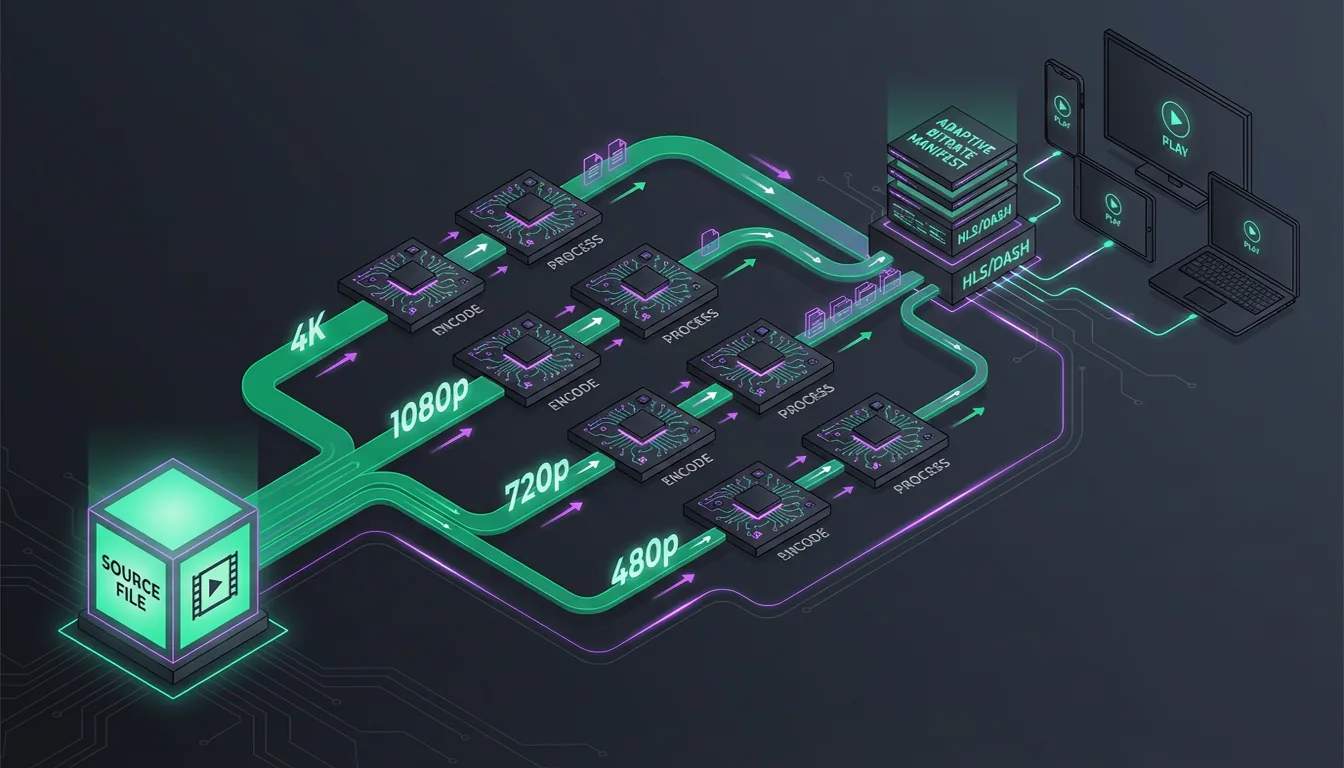
A complete HLS streaming pipeline has five stages:
- Ingest — Upload source video to cloud storage (S3, GCS, Azure)
- Encode — Transcode into multiple variants with multi-codec support, audio tracks, and subtitles (per-title optimization runs at this stage)
- Package — Wrap encoded segments in CMAF format with HLS + DASH manifests
- Deliver — Serve via CDN with proper cache headers and CORS
- Play — Client-side player (hls.js, Video.js, Shaka Player) handles ABR logic and playback
Transcodely handles stages 2 and 3 as a single API call. You handle ingest (upload to your storage bucket), delivery (configure your CDN), and playback (integrate a player into your application). The encoding and packaging — the complex, compute-intensive part — is abstracted behind a single job submission.
The result is a production-grade adaptive streaming pipeline that serves every device, optimizes for each viewer’s network conditions, supports multiple languages, and — with per-title encoding switched on — trims your bandwidth bill on top of that. All from a JSON request body and a webhook handler.
Try it on your own footage
Upload a clip, pick a ladder, and read the manifest that comes back. Test encodes up to 30 seconds are free.